
Invite users by email
Some people need access to Swiss AI-Hub but cannot sign in through Entra ID: the organization has no Entra directory, or the person is external. A Keycloak administrator gives them an account by sending Keycloak's invitation mail. The person opens the link, verifies the address, sets a password and signs in with email and password.
This page walks through the invitation in the Keycloak admin console and shows what the invited person sees.
Before you start
| You need | Why |
|---|---|
| Realm mail is set up | Without a mail server, Keycloak cannot send the invitation. The operator sets it up, see Realm mail and invitations. |
| A Keycloak admin account for the realm aihub | The steps run in the Keycloak admin console. The account needs the manage-users role of the realm-management client (or realm admin). |
| The tenant already exists | The person joins an existing tenant group under tenants, see Setting up tenants. |
| The person's email address | It becomes their sign-in name. |
To check that mail is working, open the sign-in page, choose Forgot password? and enter the address of an existing account that does not sign in through Entra ID. If no mail arrives within a minute, ask the operator to follow Check that mail arrives before inviting anyone.
Step 1: Create the user
- Open the admin console at
https://auth.<domain>/adminand select the realm aihub (shown as Swiss AI-Hub). - Choose Users → Add user.
- Enter the Email, and optionally First name and Last name.
- Leave Email verified off. Opening the invitation link verifies the address.
Don't choose Create yet: first add the tenant group in step 2.
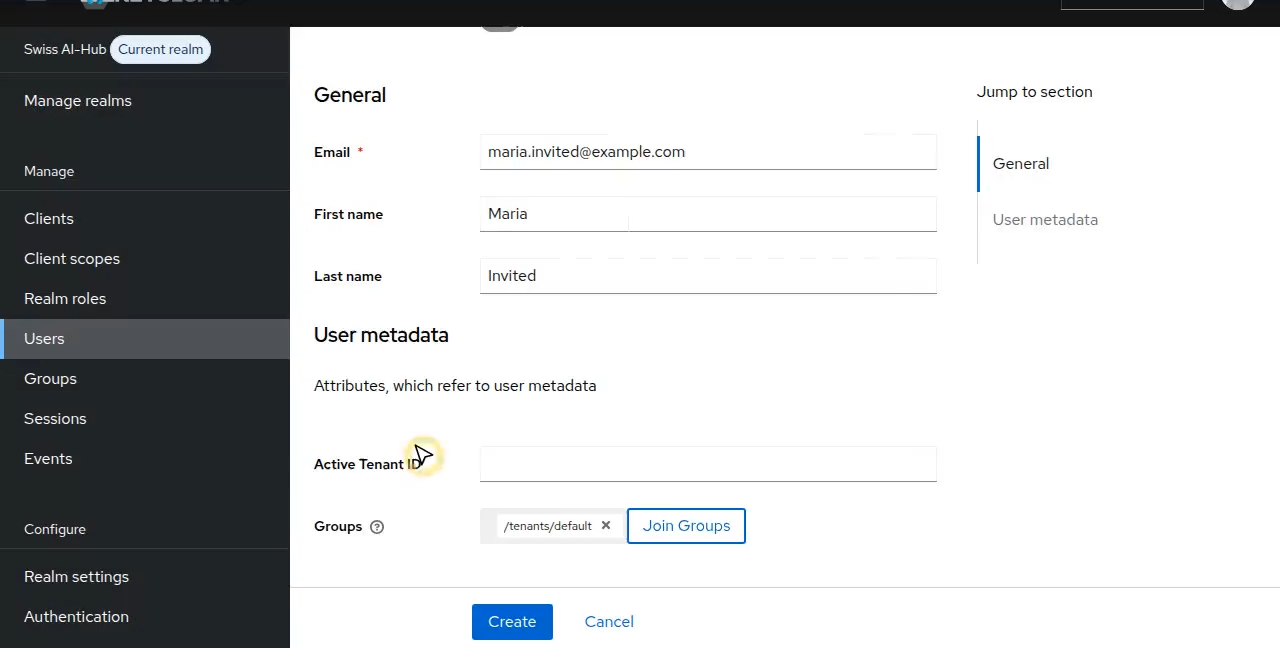
Step 2: Add the user to the tenant
- On the same form, next to Groups, choose Join Groups.
- Open
tenants, tick the tenant the person belongs to (for exampledefault) and choose Join. - The group, for example
/tenants/default, now shows under Groups. Choose Create.
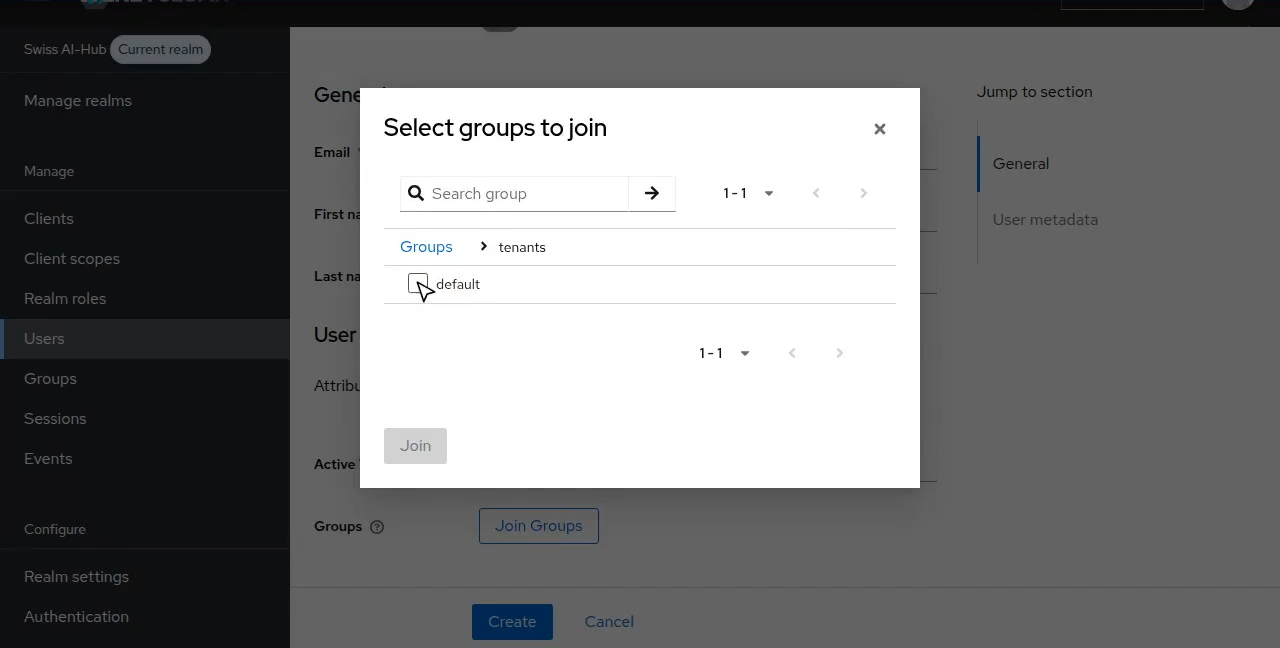
If you created the user without a group, open the user's Groups tab and choose Join Group there.
Step 3: Assign the AIHubAccess role
Without the realm role AIHubAccess, sign-in to Swiss AI-Hub is denied.
On the new user's page, open the Role mapping tab.
Choose Assign role → Realm roles.
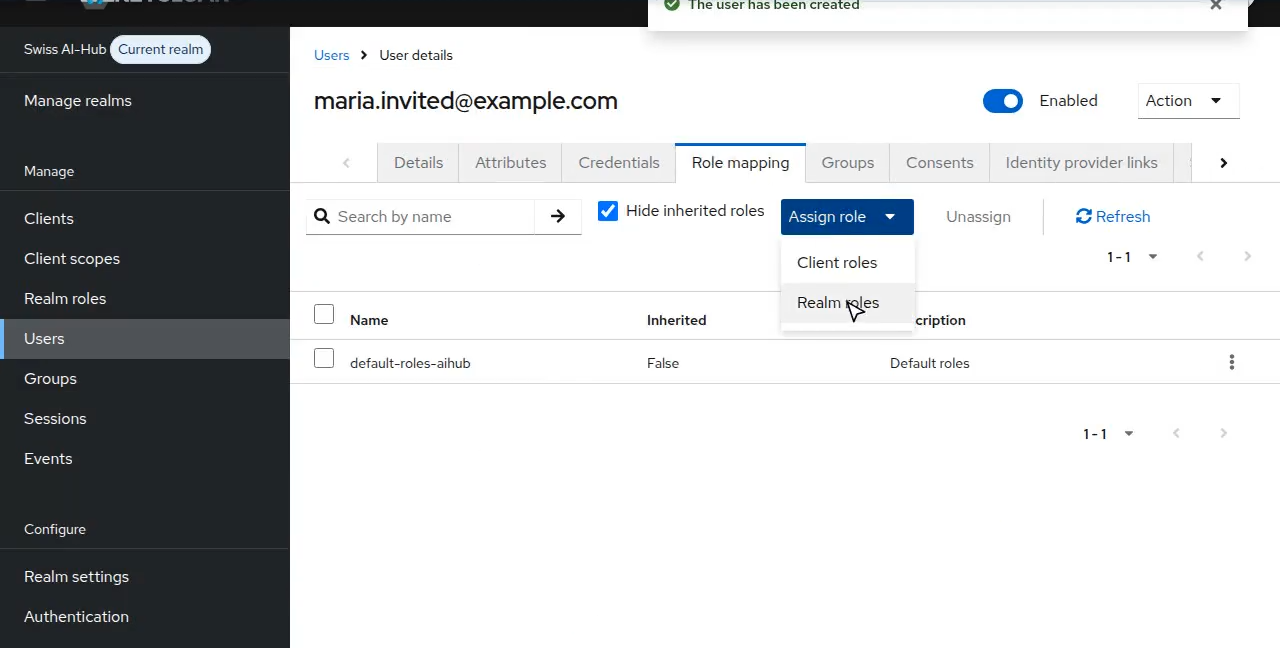
Search for
AIHubAccess, tick it and choose Assign.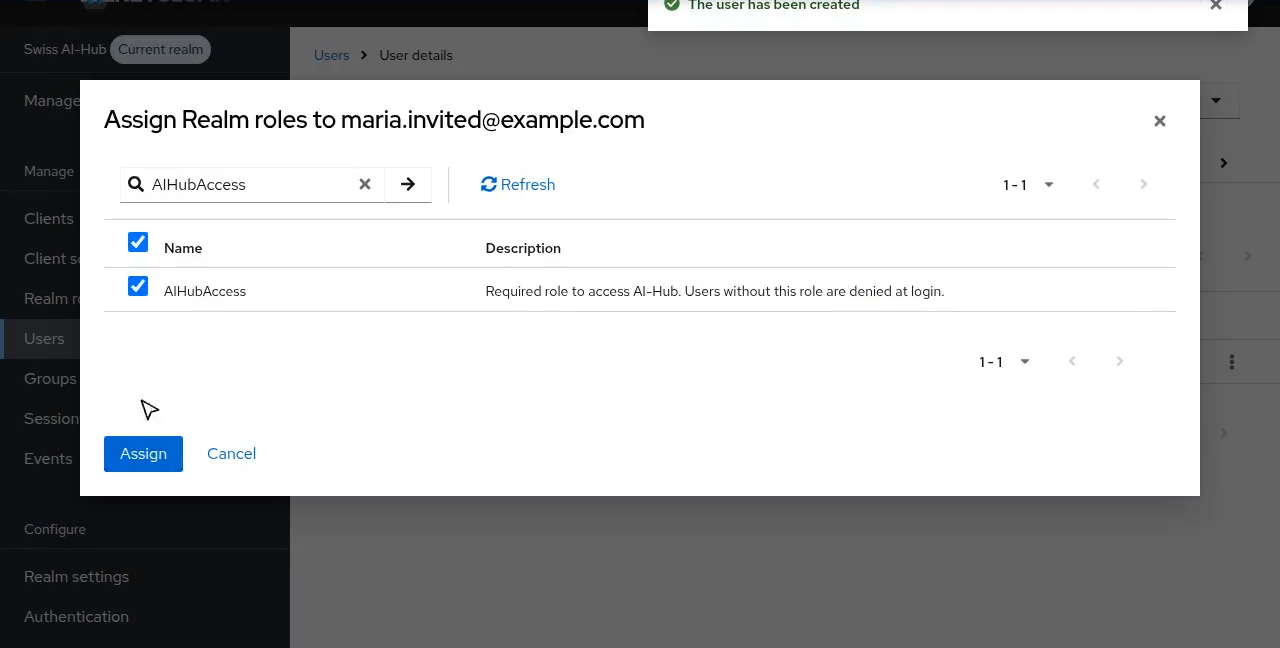
Don't assign AIHubFederatedUser. It marks people who sign in through an identity provider, and it blocks password sign-in.
Step 4: Send the invitation
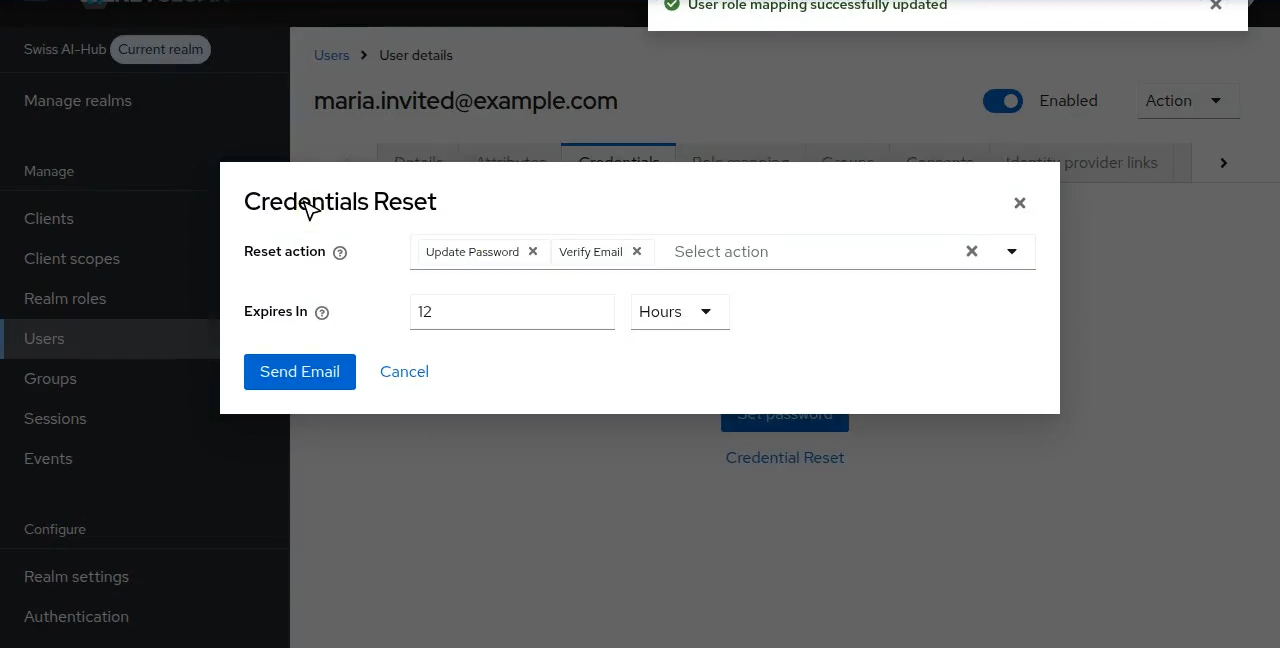
- Open the Credentials tab and choose Credential Reset.
- Under Reset action, select Update Password and Verify Email. With both actions, opening the link verifies the address and asks for a new password.
- Under Expires In, choose how long the link stays valid, for example 12 hours. Pick a time the person can realistically act within, such as one or two working days for external people.
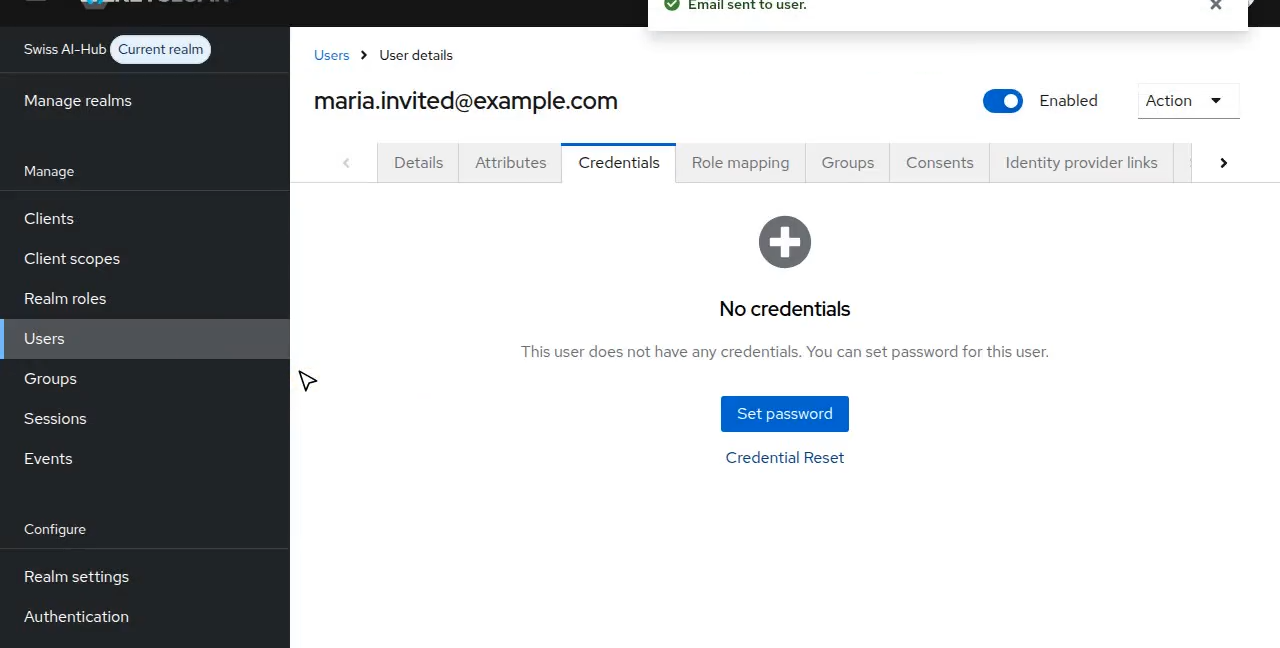
- Choose Send Email.
Keycloak confirms with Email sent to user.
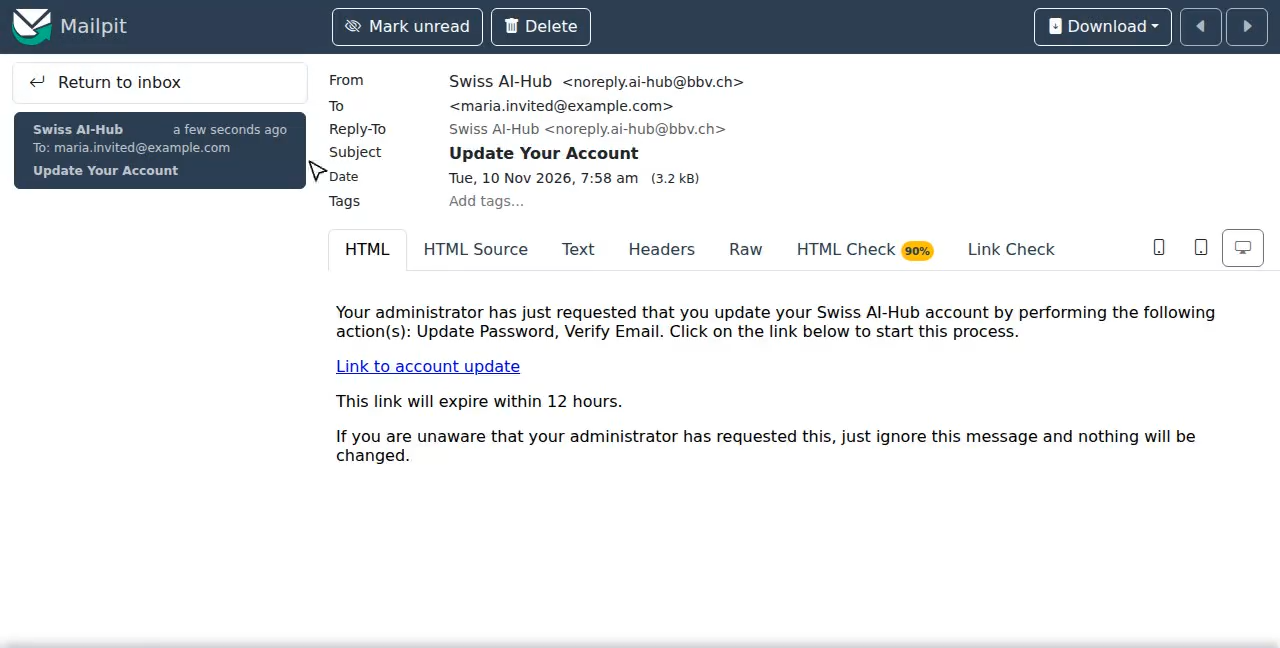
What the invited person sees
A mail titled Update Your Account arrives from the realm mail sender (by default "Swiss AI-Hub"). It contains Link to account update and says how long the link is valid.
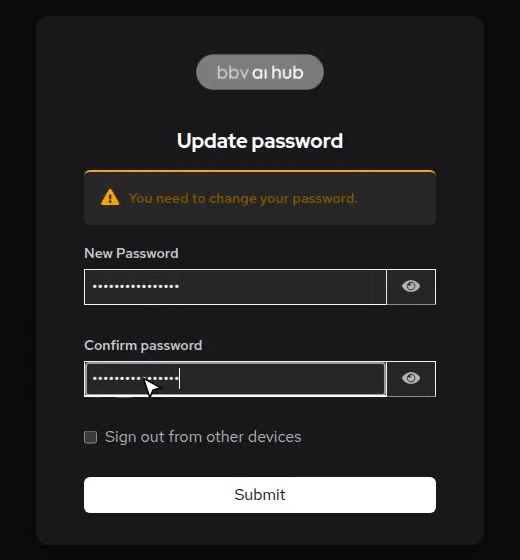
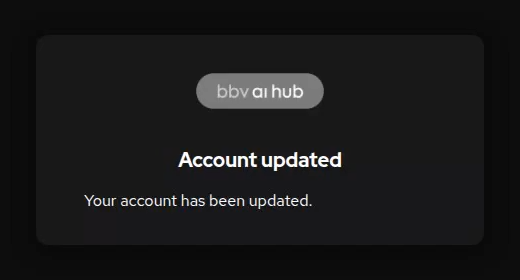
The link opens the sign-in page, which asks for a new password. After Submit, Keycloak shows Account updated. The address is now verified.
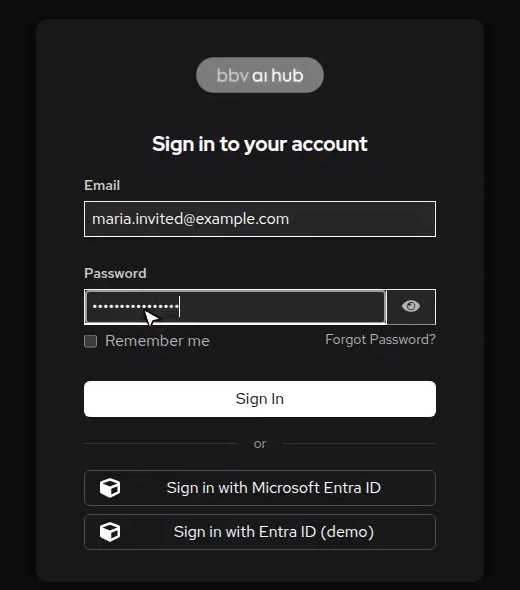
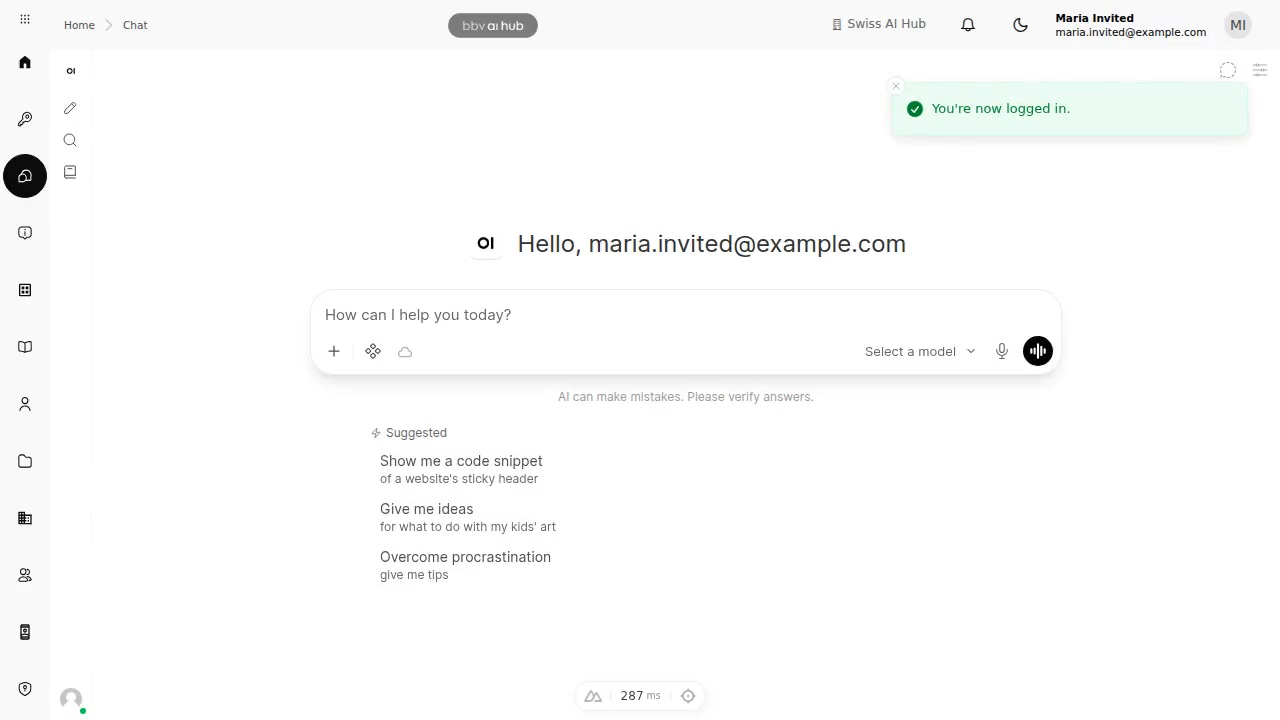
From then on, the person opens Swiss AI-Hub, chooses Login with Keycloak and signs in with their email address and the new password. This also works on instances whose other users sign in through Entra ID.
Screenshots
The screenshots come from a development instance, where a local test mailbox stands in for Microsoft 365. On your instance, the mail arrives in the person's normal inbox and the sign-in page may show other identity providers.
Step 5: Give the user a tenant role
The invitation gives access to the platform and the tenant, but no role inside the tenant yet. A tenant administrator assigns one (for example AIHubUser) in the Swiss AI-Hub admin UI under the tenant's users, as for every other user. See Managing users and roles.
Resend an invitation
If the link expired or the mail got lost, repeat step 4 on the same user. The person uses the link in the newest mail.
Troubleshooting
| Problem | Cause and fix |
|---|---|
| Send Email fails, or the console shows an error | Realm mail is not set up or not working. The operator checks the Keycloak log, see Check that mail arrives. |
| Keycloak says the mail was sent, but nothing arrives | Ask the person to check the spam or quarantine folder. Their mail server may block mail from the sender address; their IT can allow it. |
| The link says it has expired | The time under Expires In has passed. Resend the invitation with a longer lifetime. |
| The person signs in, but access is denied | AIHubAccess is missing. Assign it (step 3). |
| The person signs in, but sees no tenant or an empty tenant | The tenant group is missing (step 2), or no tenant role is assigned (step 5). |
| Add user says the email already exists | The person already has an account, for example from an earlier Entra sign-in. Don't create a second one: add the existing user to the tenant instead. |
| The link or sign-in shows "This account signs in through your organisation's identity provider" | The user has AIHubFederatedUser because they signed in through Entra ID at least once. They keep using Entra. To switch them to a password, see Users who sign in through Entra ID never use a password. |